Author Archives: peterdines

Loupe 1.5.4 fix for Reaktor 5.6

From now on, buying Loupe on this page also gets you a copy of Loupe 2!

It came to my attention – frustratingly, as I was attempting to write some music – that the Reaktor 5.6 update had done something that messed up the slice points in Loupe. After changing a snap, slices would play on too long, drop out or play the wrong part of the wave when they were first triggered. Subsequent key presses on the same note worked fine.

I spent hours trying to fix it the proper way, by looking for initialization problems. Finally I decided to brute force the issue with an iteration macro:
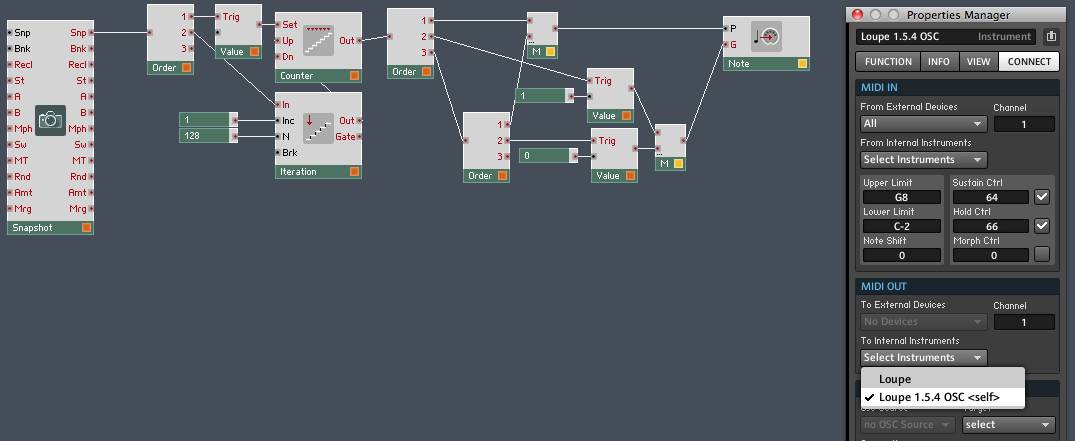
All this does is silently bang out 128 notes in a split second when the instrument loads or changes snaps. As you see in the instrument properties manager, MIDI output is directed back at itself, making Loupe properly initialize every slice. This is perhaps inelegant, the equivalent of kicking 128 televisions, but it works well, doesn’t cause other problems, and I’ll take a working kludge over broken ideological purity any day.

If you have an instance of Loupe already loaded with your snapshots and samples, and you don’t want to bother with the update, you can simply install this macro in the main instrument structure, and make sure to go to the connect tab in the instrument properties and redicrect its MIDI output to itself. Incidentally, tracing the events in this macro makes for a pretty good exploration of intermediate to advanced Reaktor event wrangling and I welcome any questions – post ’em below.

Download the update here. Don’t have a Loupe license? Learn more and purchase here.

Shout out to Felix Petrescu (Makunouchi Bento) and Phil Durrant (Trio Sowari) for beta testing!

ParamDrum for Konkreet Performer

Please note: though this version of ParamDrum has Konkreet Performer mappings, Konkreet Performer is not mandatory. ParamDrum works just fine with a mouse or any MIDI controller.

Hey kids! It’s time for yet another update of ParamDrum.

This time the big deal is Konkreet Performer mappings. Performer is an iPad app that gives you tactile control over anything that can receive OSC, such as Reaktor. Free utiities also let you translate it to MIDI for software and hardware that can’t receive OSC. How good is Konkreet Performer? It’s the reason I went out and bought an iPad in the first place.

Here’s a cheat sheet with the lowdown on who does what where and when in the KP interface:

ParamDrum 3 kp

For those of you who don’t have KP (go get it you fools), the new version still includes a new sample set, a whole lot of new snaps, and new features including optimized randomization.

Screen shot 2011-07-13 at 6.49.38 PM

A funny thing about the beats this thing throws down in conjunction with Konkreet – it’s so easy to make crazy fun beats that you’ll be making and saving one after another at a furious clip. That’s why this edition of ParamDrum has so many more snaps compared to earlier versions. And among the most warped of them, you will find that they only make sense early in the morning when your ears and mind are fresh. When your ears, body and mind are exhausted, late at night, you will lose the ability to follow the sickest beats. So never delete snaps late at night. True story.

ParamDrum KP is free for owners of previous versions. Did I mention that you also need a working installation of Reaktor to use it? I should mention that. You can download ParamDrum KP edition here. Don’t have ParamDrum yet but want in on the game? Buy a license here:

Add to Cart

Update: Due to changes in default settings for the latest versions of Konkreet Performer, not all parameters are automatically mapped. Quickest way to fix that is to install this bank in Konkreet Performer via iTunes. Instructions on working with Konkreet banks can be found here.

Loupe 1.5 for Reaktor – now with bidirectional OSC mappings for TouchOSC

From now on, buying Loupe on this page also gets you a copy of Loupe 2!

Here’s the release version of Loupe 1.5, with some added features, bugfixes, and a new layout for TouchOSC.


Changes include:

  • Added copy / paste slice (fixed since beta)
  • Added duplex OSC mappings for TouchOSC
  • Added two page OSC iPad template 
  • Fixed release envelopes cutting off prematurely

You may download it here. Update is free for owners of Loupe 1.0 – same license info will unlock Loupe 1.5. Don’t have a license? It’s $15 USD and can be purchased here:

Loupe Add to Cart

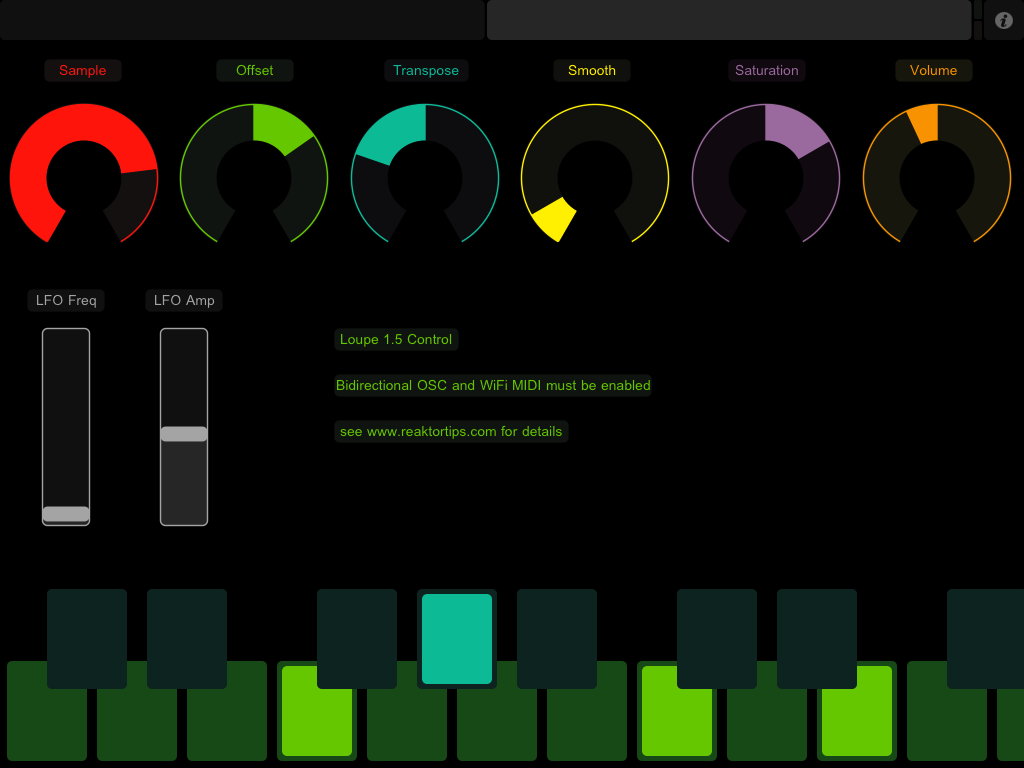
Here’s a better look at the TouchOSC layout.

Above is the slice page. Each of the sliders gets updated from Reaktor when you trigger a new slice. This lets you see the loop area, filter settings, envelope settings, etc. of each slice and adjust them. Copy and paste buttons let you copy slice parameters to a different key – handy if you want the same thing on a different key except for panning, or reverse playback.

There’s no way to get the sample waveform to display in TouchOSC, but the large green XY pad works the same way as the Reaktor Loupe GUI – X position sets loop position, Y sets loop length. I actually prefer working with my ears this way instead of looking at the display – it’s a more hardware-y approach.

Above is the global page. This selects the sample, global position offset, position LFO and other global variables. You can use this as a performance view once the individual slices and keys are adjusted to your liking.

In order to get this fully working with Reaktor, it’s necessary to set up bi-direcitonal OSC addresses. Reaktor has to talk to TouchOSC. Here’s how to set that up in Reaktor:

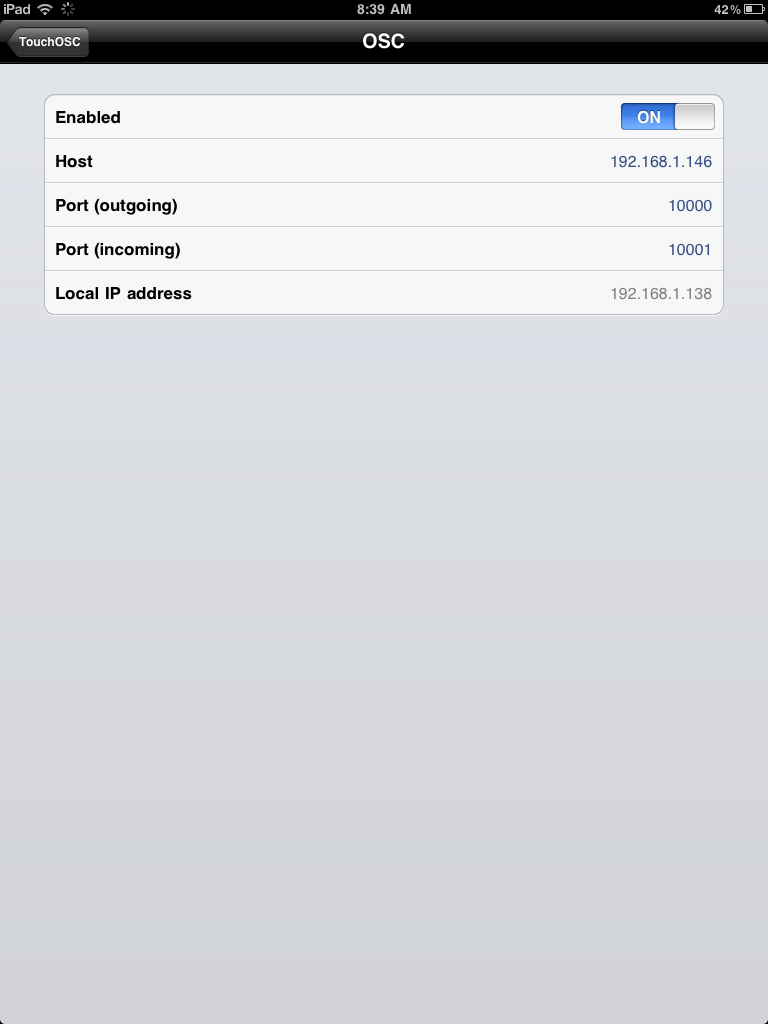
The identifier “ipad” is necessary – that’s what all the OSC send terminals in the instrument are mapped to. Take note of the ports and addresses. Reaktor’s receive address should be TouchOSC’s send address and vice versa. Here’s what it looks like on the TouchOSC side:

That will get the OSC connection going both ways. But wait, there’s more! You also need to set up a WiFi MIDI session between your iPad and computer. Here’s what that looks like on my Mac:

Selecting your iPad and hitting “Connect” should be enough to enable the session, as long as you have CoreMIDI enabled in TouchOSC. Windows users can use rtpMIDI.

Whew! This may seem like a slog at first glance, but it becomes clearer when you sit down and set up the connections, and the result is worth it. It’s magical in a dark room late at night, just you and your headphones and the controls and samples. Let me know what you think, how it’s working for you and any suggestions for a better layout.

If this is your first look at Loupe, you might also be interested in the other two instruments in my sampler pack, Mirage and Frame 2.

Update: here is a download of the TouchOSC template on its own, if you don’t have Loupe and just want to check out the mappings and naming conventions I used. I didn’t know at first that leaving a TouchOSC control’s OSC address pattern as “auto” named it according to /pagename/controlname. Quite handy for homing in on the address you want when you’re trying to select from a long dropdown menu in Reaktor.

May 15th minor update: Loupe version 1.5.1 uploaded – fixes OSC address patterns for copy and paste buttons.

General MIDI layout for TouchOSC

I was experimenting with TouchOSC‘s new MIDI capabilities and created this layout:

 There are four octaves of keys – it was a bit of a pain to go to one after another and enter the pitches so I figured I’d share the fruits of my labor. The other controls are just X, Y and XY slider controls that send MIDI CC messages. They’re arranged in a “well, let’s use up this space and see what happens” pattern. I figure I’ll fine tune it after playing it for a while.

Download it here.

UPDATE: I lowered the range by an octave so C3 is on the upper row left, which I think is more sensible.  Get it here.

Setting up iPad OSC touch apps with Reaktor

Because someone asked on a forum, I decided to write a quick note on how to set up the ports and addresses for Reaktor, Konkreet Performer and TouchOSC.

First, get Reaktor set up. This is straightforward:


This is generally as simple as activating Reaktor to receive OSC. Don’t worry about the outgoing OSC setup for now – the goal is to get Reaktor listening. Take note of the IP address and “local port”.

Now, in Konkreet Performer’s setup screen:

The outgoing address and port in Performer match the local IP address and local port in Reaktor’s OSC settings.

Similarly, in TouchOSC:

Now touch some controls in Konkreet Performer or TouchOSC and you should see messages in the OSC monitor in Reaktor’s OSC settings dialog. If not, then you may have firewall or routing problems.

I’m assuming here that you’re connecting both your computer and iDevice through a standard type of router and the IP addresses you see in these dialogs reflects that. You could also create an ad hoc network in Windows or OS X which often provides lower latency than using a router.

After you have established a connection and are seeing incoming data in Reaktor, it’s time to map some controls. Go into the properties for a knob (for example) and choose an OSC parameter from the OSC Source dropdown menu on the connection tab:

More help is available here:

Konkreet Performer

TouchOSC