Tag Archives: reaktor

Frame Tutorial Part 2: Position and Length Controls

Hi Reaktorists! I hope our American friends have had a great Memorial Day weekend and are back in the office or classroom, ready to slack off at their desks and learn more about Reaktor. šŸ˜‰

Today we’re going to look at the mechanisms by which Frame 3 sets sample playback position and length. Don’t have Frame 3 yet? It’s a free download here, where you can also get part 1 of the tutorial. So let’s drill down into the structure.


First off, notice that the grain cloud sampler module (here labeled Frame Cloud – you can usually rename these things in the properties) has a “Len” output port. This sends out the length of the sample in milliseconds when a different sample is selected or played back. I’ve highlighted the “Len” port and relevant wire here, and turned on wire debugging so we can hover the mouse to see the
values the connection is sending.
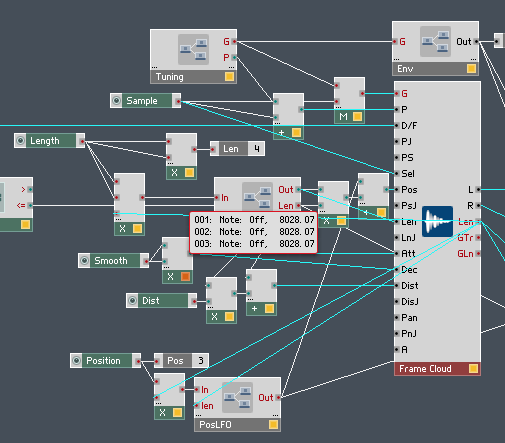
  

 The Len value goes to a multiplier where it is scaled by the Length control. If you multiplied the value from Len by a value between zero and one, you would get a potential length from zero to the maximum possible length of that particular sample. We can do something more useful, though, by setting different min and max values for that control:

Here, the Min value is 0.05, because we don’t want to scale the sample playback length all the way down to zero. Having done some trial and error experimentation, 0.05 is about right for samples composed of short musical phrases, 5 to 10 seconds long. Feel free to experiment with this though, as slight changes to very small grain lengths in a granular sampler can yield vastly different tones.

The Max value is set to 0.5 – however, notice that the value from the Length knob multiplies the sample length twice, giving us a nonlinear curve. This makes it easier to get smaller length values by tweaking the knob. (more on basic math in Reaktor here) The maximum length with a value of 0.5 is a quarter of the sample length. If you want a longer sample playback window, changing this value to 0.6 to get a max length a little more than one third the length of the sample works well too.

The Len output also gets scaled by the Position knob to set the playback position. Here are the properties for the Position control:

This is a straight zero to one, and it’s only multiplied by Len once, because we want the full range of travel of the length of the sample and we want the travel to be linear. However, notice that the mouse resolution is turned up to 1022 and there’s a very small step size.

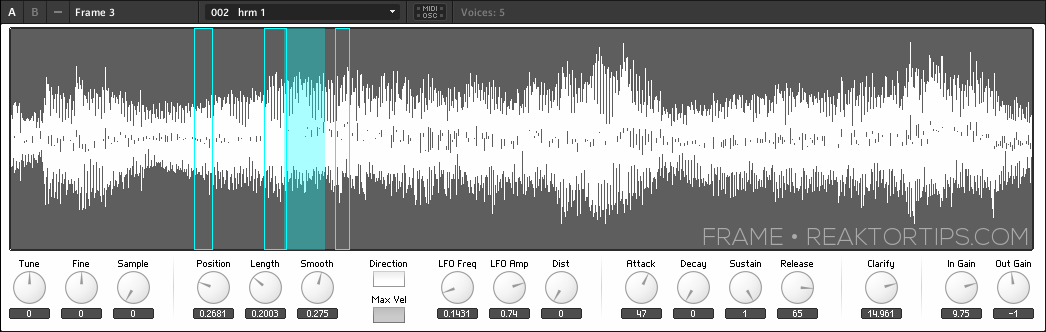
Popping up one level in the structure, here’s a mouse area module, which appears (or more strictly speaking, doesn’t appear!) on the front panel of the instrument as a transparent overlay over the waveform display. The mouse area will appear greyed-out and visible when the panel is unlocked, allowing you to move and scale it, but becomes transparent and invisible when the panel is locked, unless you’ve altered its properties in the view tab.
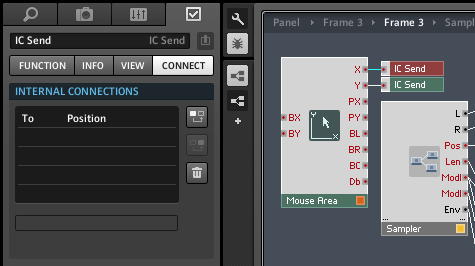
The point of the mouse area is to allow you to click and drag on the waveform to set the position and length of the sample playback area. Instead of connecting directly to the sampler module, the mouse area uses two IC Send modules to connect to the position (X) and length (Y)  controls on the front panel. That way, clicking and dragging to move the playback window also moves the knobs and keeps everything in synch.

The two other important things to note about the position and length controls is that they can be modulated by the LFO macros, and that the current position and length are shown by translucent  blue-green indicators on multi and poly display modules. We’ll look at the how and why of that in upcoming installments of the Frame 3 tutorial series.

That’s all for today, so in the meantime experiment and explore, and enjoy.

ADDENDUM: Reaktor Tips reader BD noticed that some of the parameters in Frame weren’t mappable in Ableton Live. Here’s how to fix that. Number one, click on the Frame 3 title bar so the instrument is focused:

Number two, on the instrument properties “connect” tab, in the IDs menu at the bottom, do an “instrument down” and then a “sort and compress IDs”.

Sadly, this will likely undo any mappings you’ve already done in your DAW, but there aren’t many in this instrument and after this procedure you will be able to map them all. Make sure to save the instrument so you don’t have to do this again next time. I’ve updated the downloadable file but have included these instructions because a) it’s handy to know, and b) you’ve probably already saved your own modified versions of Frame 3 by now with your own snaps and sample maps.
Frame 3 – Free Creative Sampler for Reaktor + Tutorial Series

Frame is a simple Reaktor sampler I built to implement a type of freeform looping and creative sampling I felt was missing from most other software samplers on the market. Frame allows you to define a window of sound and sweep it across the sample as it plays without glitching or popping. Depending on the size of the sample, the smoothness, the spacing, and whether or not you’ve turned up the position / length LFO, you can get results that are reminiscent of some of the great creative sampling musicians – well alright, this also requires skill and taste; all I’m doing here is removing one of the technical hurdles. šŸ˜‰


Today we begin a series of tutorials that are going to start with picking apart and explaining Frame’s structure then move on to sound design and even modifying the structure – adding more modulations and even sequencing, perhaps. I’m open to suggestions!


First off, let’s have a look at the heart of the instrument, a grain cloud sampler. This module sometimes get a bad rap for eating CPU but it’s one of the most versatile and useful sampler modules in Reaktor and the CPU use can be tamed. Here in the grain cloud sampler module’s properties, I’ve set “overlap” to 1 rather than the default 32. Right away that eliminates a ton of CPU usage.

The trick here is, each note will correspond to a single grain of sampled sound, which allows us to juggle individual grains using Reaktor’s voice logic. In fact, each grain can now be thought of as a slice or loop. We’ll look at how to leverage this in upcoming Frame tutorials.

I’ve clicked on the grain cloud sampler module below which shows all the incoming and outgoing connections highlighted in blue. Notice that I’m not using any of the built in jitter controls, which in my humble opinion can create a stereotypical Reaktor-ish sound which I’d like to avoid; there are other ways to modulate the same parameters that afford better control over the character of the sound.

Starting at the top, there are gate and pitch controls. The gate restarts playback of grains at the G input on the grain cloud sampler, and also triggers an envelope that is connected to multiplier modules to control the sound’s attack, decay, sustain and release.

A tuning macro provides coarse and fine tuning. Here’s what’s inside it:

You may well wonder, why is 60 being subtracted from the incoming MIDI signals? It’s to simplify the process of sample mapping. Frame doesn’t work like a Kontakt style sampler, where typically an instrument like a piano or bassoon is sampled in different key ranges which are mapped across the sample map. Instead, it’s designed to place one sample in each slot (or key) on the map, up to 127 samples, and a sample is selected and played back within a narrow range – you will probably want to stay within an octave of middle C upwards or downwards unless you’re going for particular special effects. And instead of playing one-shots like an emulated instrument, you will want to use samples of short musical phrases, beats, field recordings and such.

TL;DR version: think of pitch zero as neutral, and negative and positive pitch values as repitching the sample upwards and downwards.

An important feature here: the sample select knob, with values that run from 0 to 127, is added to the pitch – so when sample 7 is selected, 7 semitones are added to the playback pitch of the note. Why is this? It’s done in order to simplify the addition of notes to the Frame sample map, which looks like this:

Each note in the sample map has a root which starts at 0 for the first sample and counts up from there. So sample 7 has a root pitch with the MIDI value of 7. In order to play it back unpitched, it has to play back at a MIDI pitch of 7. When adding samples to Frame, it’s important to have “move root with low note” ticked in this menu:

Fortunately, unless you’re hacking Frame or designing your own sampler from scratch, you don’t have to think much about this – just add samples consecutively to the sample map and start playing.

And this is what I want you to do now – start playing Frame. All the controls are tool tipped so it should be self documenting. Try different sorts of sampled material – 5 to 10 seconds at a time works best – and especially try different smoothness, LFO and envelope settings. You will be surprised at how much sculpting you can do on a single sample with just those controls.

Frame is free and can be downloaded here. As with the other instruments I’ve created for Reaktor, it requires a full installation of Reaktor 5.8. Importing samples is easy and follows the same procedure as its big brother Loupe, a process documented here.

Body Parts for Reaktor

MacProVideo’s gone and done a tutorial series on NI and Tim Exile’s The Finger and The Mouth. I’m not sure if NI plans to release the rest of Frankenstein’s monster – would The Foot be a kick drum? And would the… no, don’t go there – anyhow, if you find these ensembles baffling, here are some pointers.

Guest Review: BitRate by Icebreaker Audio

 This is a guest review of Icebreaker Audio’s BitRate ensemble for Reaktor that was originally posted on the KVR forums by Sendy (Alexandra Cornhill). BitRate is a first-rate lo-fi tool and this is a well written review so I asked for permission to repost it here rather than seeing it scroll off into forum infinity. – Pete

BitRate – Verdict: 9/10

If you have an interest in chip music and have Reaktor, just get this now. If you’ve got any doubts beforehand, check out the audio demos and then buy it. This is living the dream – the dirty, pixelated, large-grain-parametered, limited yet limitless dream which is working with 8-bit and lo-fi gaming audio devices.


I’m a fond user of Plogue Chipsounds, and pretty much the only thing Chipsounds got wrong was that it was a tad too academic if you wanted to really reach into its guts and pull moves like Hubbard. While it would have taken Hubbard painstaking hours of tapping away on a machine code monitor to create his best patches, having to do so in this day and age, can be offputting for some. While BitRate is nowhere near as flexible as Chipsounds, it turns the academic problem on its head, allowing you to get experimenting and grooving right away. And in accordance with its GUI it has all the fun of making music on a portable handheld device.

Presumably the name BitRate comes from the fact that most sounds are derived from a master clock or pulse, which interacts with the frequencies its tone generators are asked to produce, creating plenty of grit. This aspect of the instrument really comes over as sounding authentic and all of your sound production decisions are limited in ways similar to the original hardware that inspired it – for example, the pulse wave can only produce four pulsewidths – the envelope rates are quite coarse on a lot of modules, often you’ll get a rhythmic clicking sound around the attack or release which under normal circumstances would be annoying, but in this case just adds to the delightful abandonment of Hi-Fi sensibilities that working with outmoded technology embodies. And having less resolution to tweak things often means you spend less time tweaking and more time rocking out. There’s a lot you just can’t do, like assignable envelopes or LFOs, though this is made up for somewhat by providing two step sequencer modulators per sound. These are quite limited because you can’t create smooth transitions, but it’s enough to really open up the sound possibilities and add expressiveness and variety to your sounds.

So, the sounds are authentic and tweakable enough to allow you to apply your vision to them. The NES is represented in full, as is the Gameboy’s wave channel (which you can modulate for cheap-arse wavesequencing fun!), cruddy 2-op FM from the Dos days also makes an appearance, as do cheap sampled Casio-style percussion sounds (which can even be circuit-bent… one parameter is called “Crap out” which is good for making the sound, well, crap out!). The final bunch of sound varieties come from the Glitch modules, which use experimental clocked oscillators in various configurations of cross-modulation and filtering. The results are simultaneously very unique and yet immediately suitable to their context.

One gripe with the modulation section – and this was pretty much one of the only problems I had that I considered down to bad design – when you choose a Wave channel to work with, you’re given 16 waveforms which you can modulate between. However, if you set the modulation range to maximum, and create a ramp up and down, not every wave will get a chance to play, because there are actually more waveforms than there are possible modulation values! To make matters more annoying, it took me a little bit of scienceing to work out that… get this… waves 0, 2, 4, 6, 8, 9, 11, 13, and 15 are the ones that can be visited, and the other waves are virtually irrelevant unless you gang modulations in a complex way or reduce the modulation range – but then you have even less waves to work with, so why would you do that? It’s just really unintuitive but now I’ve explained it, it’s not a problem anymore. Go me!

Finally, the GUI and sequencing options play their role perfectly. As I’ve said before, the graphics really give you that “I’m working on an old handheld” feeling. Parameters and modulation options are quite granular, you have only four patterns to work with and limited resolution… But oddly these limitations, which I didn’t like much at first, do their job wonderfully of giving you that sonic aesthetic associated with chip music. You’ll be banging out Megaman stage themes and soundtracks for long-lost platformers before you know you’ve even learned how to use it. And if you want to get more complex, my advice is to layer instances, and/or sample your work in BitRate and arrange and augment it in your DAW.

Should you fail miserably, lose all your lives and get a Game Over in your quest for epic 8-bit beats, the presets are pretty killer, too, so there’s always that to fall back on.

Here are some more audio demos of BitRate:

14 Bit MIDI Receive Macro for Reaktor – Free Download

Someone asked about 14 bit MIDI on Twitter, then implemented their own solution while I was snoozing – different time zone? Red Bull? Who knows – so I thought I’d upload my own version for comparison.

It receives two MIDI controllers, one of which represents the most significant bit, the other of which represents the least significant bit. It uses a bit shift module in Core, which is always fun. Whee! The upshot is, you get extremely high resolution for controlling things that you don’t want to be overly steppy, like filter cutoff and sample playback position.

I’m not using it any more because Reaktor now has OSC in the plugin version, so I use OSC tools like Konkreet Performer, TouchOSC and Lemur for my hi-res controller needs. But for those of you who have hardware that supports 14 bit MIDI, this is going to be useful, as Reaktor has no native 14 bit controller support.

All you have to do is decide which controllers you’re using, set them in the controller properties, then use the NRML output for a normalized 0 to 1 control range.

Here’s the macro. Happy controlling!

Update: Thanks to the ever sharp eyed and vigilant lazyfish, I’ve been informed of a bug in the macro. It will work but it looks weird because there were two modules on top of each other in the core cell. Here they are separated:

You can either multiply the incoming MSB by 128 or bit-shift it by 7 bits. I had tried both, got the same basic results, and left both modules in the core cell but with only one connected of course.  Sorry for the confusion! I’ve uploaded a corrected macro.

Update 2: lazyfish asked the important question, why am I converting twice? I think I was programming Lemur-ese in Reaktor based on input from a template I was using on iPad at the time. Here is another iteration of the macro:

In this one, the value range of the controllers can be left at 0 to 1 which is the default in Reaktor, and the values, math and scaling happen in the core cell where everything’s explicit – I like to avoid having magic numbers hidden in properties whenever possible.