Tag Archives: reaktor

More on routing Reaktor in Live: multi out audio UPDATE: VST works too, not just AU

Reaktor has flexible audio out ports – you’re not limited to stereo, and you can take advantage of that in Live.

Fire up Live and load the Reaktor AU (UPDATE: VST version will work too). Load the Aerobic ensemble, and in the lower right corner, turn on the “out” switch. This will enable multi-out for Aerobic, so each drum unit can be routed to one of four stereo pairs.

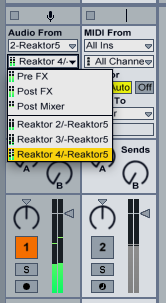
Then go to an audio track, select audio from your Reaktor track, and select either the pre or post FX for the first stereo pair, or one of the three others.

This means you can apply effects to each stereo pair by routing them to different tracks.

But what if you don’t want to use Reaktor’s outputs in pairs? Let’s say you’ve built a crazy custom ensemble with a mono sampler, a sine, a square and a saw wave, and you want to route them individually to the first four outputs. What you can do then, is use Live’s mono track insert effect to choose either the right or left channel exclusively.

So there ya go – easy flexible routing. I’m not sure why it won’t work with the VST version of the plugin, and I’m too bushed to fire up Windows and find out if it works properly there. Are there any Windows users who’ve tried this?

UPDATE: turns out routing with the VST plugin version does work properly after all. I think I had the monitor setting wrong in the receive track. Sorry for the disinformation! Remember to turn off the track activator for the track holding Reaktor, and if you want the first stereo pair, choose pre or post FX in your target track, not post mixer (that would be the muted signal).
Routing Reaktor MIDI in Ableton Live with a dummy track

I’ve always been annoyed with the way Live disappears the MIDI out menu of a track the instant you drop in an audio effect or instrument. It makes it difficult to route Reaktor’s awesome Spiral instrument, for example, to another instrument track. Or to send LFO controllers from Reaktor to an instrument. You can do it by selecting the Reaktor track as the MIDI in on the destination, but then you lose the ability to also control the instrument from a keyboard or control surface.

Farting around this evening I noticed that you can kludge around this limitation by creating a dummy MIDI track as a MIDI bus:


Notice that the MIDI Bus track has its inputs set to the Reaktor5 track, but also to the Reaktor5 instrument in that track. The MIDI Bus track has its output set to the next track, which has an instrument rack. That doesn’t tie up the MIDI from dropdown in the instrument rack’s track, so the track still accepts note and control information from a control surface or keyboard, or what have you.

The other important point is to set monitor to “In” for your two target tracks.

Maybe this is a well known workaround now but a year or two ago when I googled for solutions I found only complaints and no fixes. I hope this helps somebody else because it sure opens up possibilities for me!

Skinned Paramdrum Now Available for Reaktor 5.15 (non beta)

By popular demand, here is the new skinned ParamDrum with the new sample maps, now saved in Reaktor 5.15 so you can make use of it without upgrading to the beta.

I didn’t manage to export the snaps so I made new ones. I’m particularly fond of the Doctor Dances and Bad Wolf snaps:

The 5.15 version is available here. The same password as before will unlock it. Don’t have a license yet? Get one here:

ParamDrum Add to Cart

ParamDrum Update: now with Jonathan Style skin, new sample maps!

The impossible has happened: a ParamDrum update.

It’s got a brilliant skin courtesy of Jonathan Style, a new sound set based on samples from a very popular hardware synth (can you name it?), and at the moment only four new snaps. I could delay release and make more presets, but I want to get this out as soon as possible considering what a wait it’s been since the last update. It sounds like this:

This is a free update for people who’ve already purchased – the same password will unlock this skinned version. Be aware that I’ve migrated to the fantastic and problem free Reaktor 5.5 beta, and the new skinned version will no longer open in earlier versions. Get the beta here.

UPDATE: Due to popular demand I have posted a version of the new skinned ParamDrum that will open in the non-beta version of Reaktor.

The 5.5 beta is rock solid stable and if anything uses less CPU than previous versions. I have had no hiccups or crashes using it. Nevertheless, back up your custom ens before saving them in the new version, just in case you want to revert to 5.15. Like this version of ParamDrum, the Reaktor 5.5 update will be free for current license holders.

Haven’t purchased yet? $15.00 gets you the password to all versions.

Here’s the link:

ParamDrum Add to Cart

Sending MIDI CC with the Channel Message module


I’ve been working with someone on creating custom MIDI controllers for use in Ableton and thought I’d share ideas. The most flexible way to send MIDI in Reaktor 5 is to use the Channel Message module.

The input ports, from bottom to top, work like so:

  • Val: self explanatory. This is where you send the value of the message you want to transmit. By default the range is zero to one, but you can change this in the module properties.
  • Nr: In this case, the number of the MIDI CC to transmit.
  • Ch: The MIDI channel to transmit on. This overrides the settings of the instrument containing the module, but you can go into the module properties and tell it “always use instrument’s send channel”.
  • St: Status – this determines what kind of message will be sent. We’re sending type 3 which is a MIDI controller message. You can also send note on/off information, pitch bend, and so forth.

The tricky bit: this module only sends data when it receives events at the St input. When it receives an event there, it transmits whatever values are at its other inputs. That’s why I’m using the order and value modules, to ensure that every control change is followed by an event with the value “3” at St. Hover over St and the other ports for hints on what values they accept and what the values mean.

I’ve deliberately kept the structure as simple as possible for clarity… some enhancements you might make are to add panel controls to set the MIDI channel and CC#, and to rig up a more interesting event source than a knob. How about the LFO module? Try it but keep in mind the default range of the LFO is -1 to +1, not 0 to 1. You can either compensate with a few math modules or (not recommended) change the default range in the Channel Message module’s properties.

Here’s the test ensemble – build something fun with it!