Hi Reaktorists! I hope our American friends have had a great Memorial Day weekend and are back in the office or classroom, ready to slack off at their desks and learn more about Reaktor. 😉
Today we’re going to look at the mechanisms by which Frame 3 sets sample playback position and length. Don’t have Frame 3 yet? It’s a free download here, where you can also get part 1 of the tutorial. So let’s drill down into the structure.
First off, notice that the grain cloud sampler module (here labeled Frame Cloud – you can usually rename these things in the properties) has a “Len” output port. This sends out the length of the sample in milliseconds when a different sample is selected or played back. I’ve highlighted the “Len” port and relevant wire here, and turned on wire debugging so we can hover the mouse to see the
values the connection is sending.
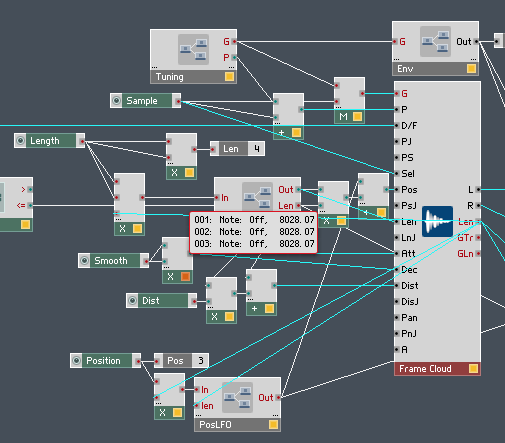
The Len value goes to a multiplier where it is scaled by the Length control. If you multiplied the value from Len by a value between zero and one, you would get a potential length from zero to the maximum possible length of that particular sample. We can do something more useful, though, by setting different min and max values for that control:
Here, the Min value is 0.05, because we don’t want to scale the sample playback length all the way down to zero. Having done some trial and error experimentation, 0.05 is about right for samples composed of short musical phrases, 5 to 10 seconds long. Feel free to experiment with this though, as slight changes to very small grain lengths in a granular sampler can yield vastly different tones.
The Max value is set to 0.5 – however, notice that the value from the Length knob multiplies the sample length twice, giving us a nonlinear curve. This makes it easier to get smaller length values by tweaking the knob. (more on basic math in Reaktor here) The maximum length with a value of 0.5 is a quarter of the sample length. If you want a longer sample playback window, changing this value to 0.6 to get a max length a little more than one third the length of the sample works well too.
The Len output also gets scaled by the Position knob to set the playback position. Here are the properties for the Position control:
This is a straight zero to one, and it’s only multiplied by Len once, because we want the full range of travel of the length of the sample and we want the travel to be linear. However, notice that the mouse resolution is turned up to 1022 and there’s a very small step size.
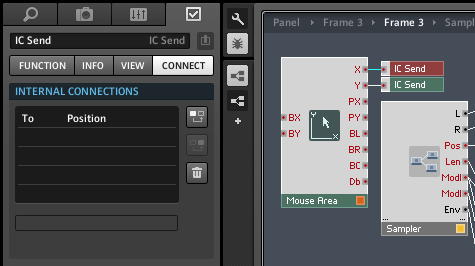
Popping up one level in the structure, here’s a mouse area module, which appears (or more strictly speaking, doesn’t appear!) on the front panel of the instrument as a transparent overlay over the waveform display. The mouse area will appear greyed-out and visible when the panel is unlocked, allowing you to move and scale it, but becomes transparent and invisible when the panel is locked, unless you’ve altered its properties in the view tab.
The point of the mouse area is to allow you to click and drag on the waveform to set the position and length of the sample playback area. Instead of connecting directly to the sampler module, the mouse area uses two IC Send modules to connect to the position (X) and length (Y) controls on the front panel. That way, clicking and dragging to move the playback window also moves the knobs and keeps everything in synch.
The two other important things to note about the position and length controls is that they can be modulated by the LFO macros, and that the current position and length are shown by translucent blue-green indicators on multi and poly display modules. We’ll look at the how and why of that in upcoming installments of the Frame 3 tutorial series.
That’s all for today, so in the meantime experiment and explore, and enjoy.
ADDENDUM: Reaktor Tips reader BD noticed that some of the parameters in Frame weren’t mappable in Ableton Live. Here’s how to fix that. Number one, click on the Frame 3 title bar so the instrument is focused:
Number two, on the instrument properties “connect” tab, in the IDs menu at the bottom, do an “instrument down” and then a “sort and compress IDs”.
Sadly, this will likely undo any mappings you’ve already done in your DAW, but there aren’t many in this instrument and after this procedure you will be able to map them all. Make sure to save the instrument so you don’t have to do this again next time. I’ve updated the downloadable file but have included these instructions because a) it’s handy to know, and b) you’ve probably already saved your own modified versions of Frame 3 by now with your own snaps and sample maps.